Get trusted information to identify Windows Defender security warnings, remove pop-ups, and keep your device protected.

Step-by-step guidance
from Microsoft resources

Learn how to stay safe
from online threats.

Get help anytime with
our articles & guides.

Information updated
regularly for accuracy.

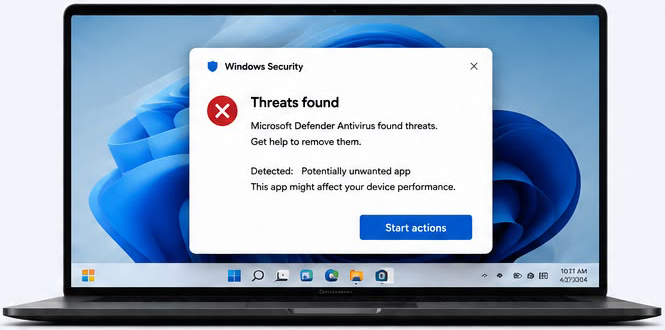
Warnings about detected viruses, malware, or potentially unwanted applications.
Learn more
Fake Windows Defender pop-ups trying to scare you into calling fraudulent numbers.
Learn more

A genuine Windows Security notification normally appears within Windows and can be checked directly through the Windows Security app. Be cautious with browser pop-ups that pressure you to call a phone number or provide payment or personal information.
Repeated pop-ups can come from Windows Security notifications, browser notifications, unwanted software, or potentially deceptive websites. Check your Windows Security settings and browser notification permissions.
First determine whether the message is from Windows Security or from your web browser. Browser-based pop-ups can often be stopped by closing the page and removing unwanted site notification permissions.
Don’t immediately click links or call a number displayed in an unexpected pop-up. Open Windows Security directly from Windows and check the device’s security status.
A scam pop-up is a deceptive browser message designed to look like a Windows or Defender security alert. These messages may use urgent language and attempt to persuade users to call a number, install software, or disclose information.
Open the Windows Security application, select Virus & threat protection, and review the available scanning options. A full scan can check files and running programs for potential threats.
Review the detection details in Windows Security and follow the recommended actions shown there. Avoid downloading unknown software or following instructions from suspicious pop-ups.
Open Windows Security and review the status of areas such as virus and threat protection, firewall, account protection, and device security.
Windows Security receives security intelligence and platform updates through Windows Update. Check Windows Update to make sure your device has the latest available security updates.
Microsoft Defender Antivirus can detect and help remove many types of malware and potentially unwanted software. The appropriate action depends on what Windows Security detects.
If the warning appears inside a web browser, it may be a website notification or deceptive pop-up rather than a Windows Security notification. Review your browser’s notification permissions and close suspicious pages.
Check the notification permissions for websites in your browser and remove permissions for websites you don’t recognize. Also run a security scan if you suspect unwanted software.
You should not assume that a phone number displayed in an unexpected security pop-up is legitimate. Verify support information through an official Microsoft source instead of relying on a number presented by the pop-up.
A security message appearing while browsing Facebook or another website may be a browser notification or deceptive web advertisement rather than an official Windows Security alert. Verify the warning directly through Windows Security.
Start with the Windows Security application and Microsoft’s official support resources. For third-party informational or support services, verify who operates the service before providing account, payment, or personal inf
Disclaimer: This website is an independent support resource and is not affiliated with Microsoft Corporation.
Windows, Windows Defender and Microsoft are trademarks of Microsoft Corporation. We provide guidance to help users resolve common issues.